Welcome to Home Assistant!
Your complete guide to setting up and using the Home Assistant app
Web Access Available
Your device is unsupported for the mobile app, but web access is available from any device.
Home Assistant LoginStep 1: Download & Open the App
If you haven't downloaded the app via the link above, please do so!
Open the App and click Continue to proceed.
⚠️ Please Allow Local Network Permissions!

Step 2: Connect to Your Home Assistant Server
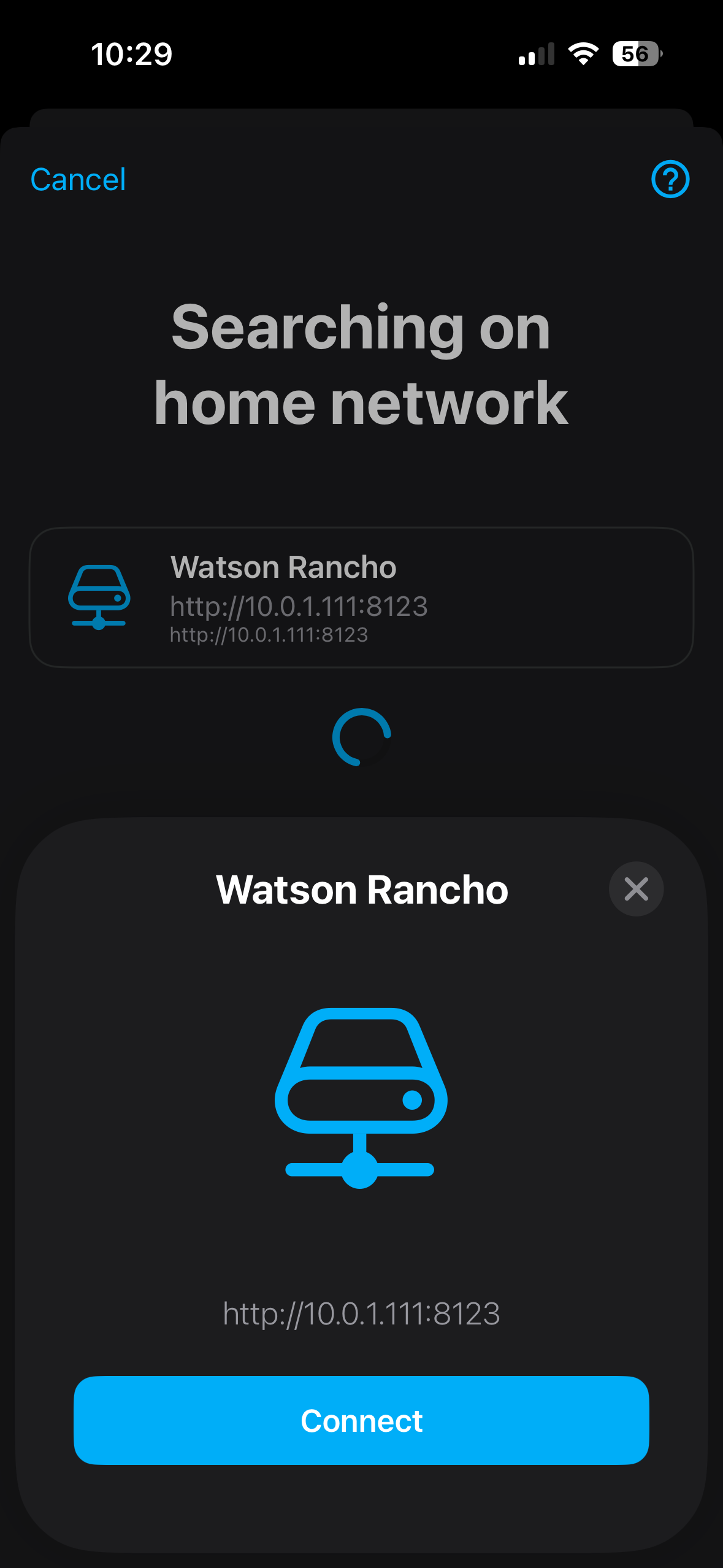
After a few permissions and setup prompts, you'll find yourself here.
Select Home followed with the string of numbers (IP)
If No "Home" exists, click manually and enter:
http://control.ranchoav:8123
or
http://10.0.1.111:8123
Step 3: Login to Home Assistant
You will then be forwarded to this page.
Enter the following credentials:
Username: guest
Password: **SECRET**
Click Log In

Step 4: Welcome to Your Dashboard!
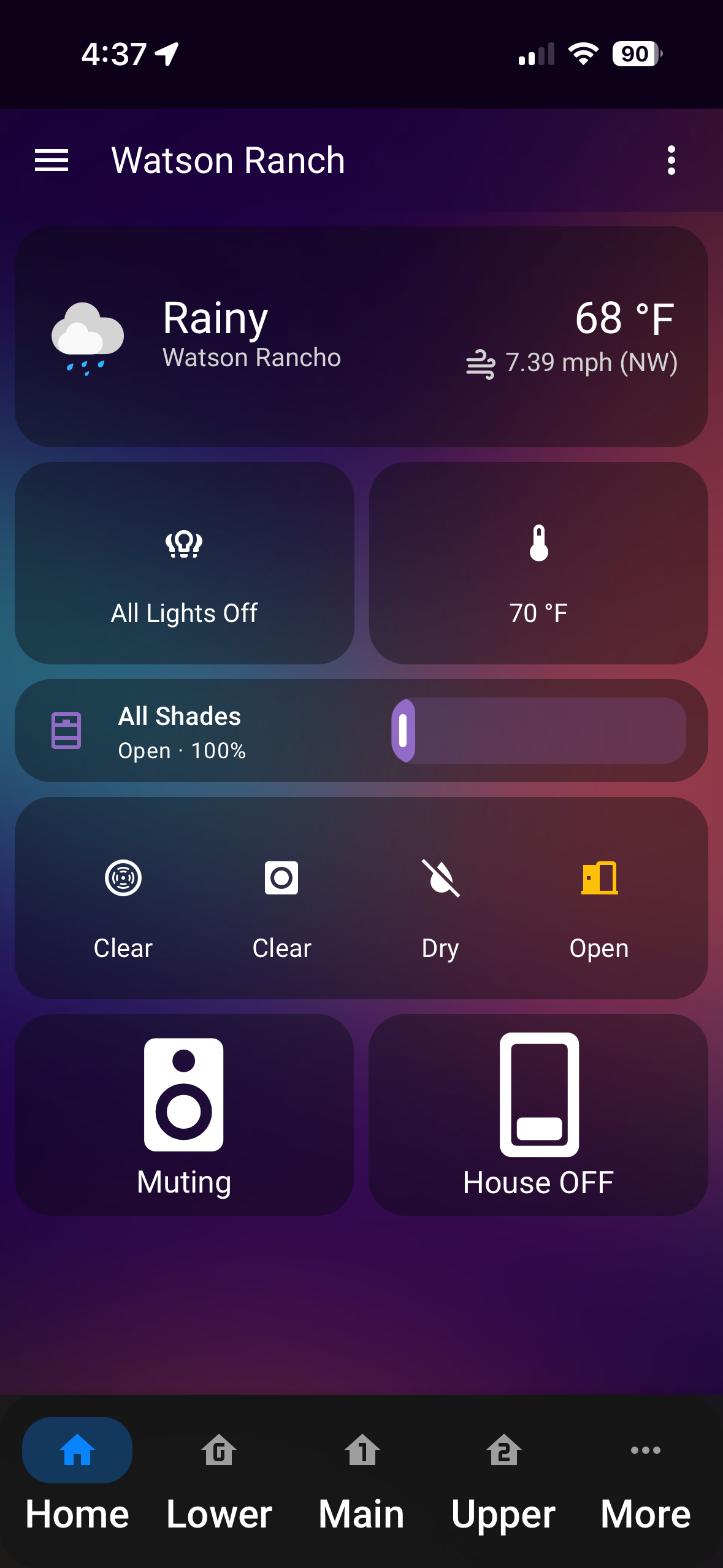
You will be greeted by this dashboard with "cards" of many rooms.
Utilize the bottom navigation buttons to jump to each room.
There are various things here clicking on each item will bring you to a new page with related controls.
Lights on will bring you to a page to control any light currently on individually.
Temperature will bring to to all climate controls of the house.
Clicking the left of the shades will open up a popup with a master slider and indivudial kitchen and great room shades. Clicking kitchen or great room will bring up individual shades.
The 4 security icons show data from the houses sensors. 1st being smoke, 2nd carbon monoxide, 3rd leak sensors, and lastly door sensors.
Muting will bring you to a page to either temporarily mute all audio. Global mute will turn off all audio receivers.
House Off... well it turns all of the lights off. (May incorparate media and other devices)
Step 5: Navigating Between Rooms
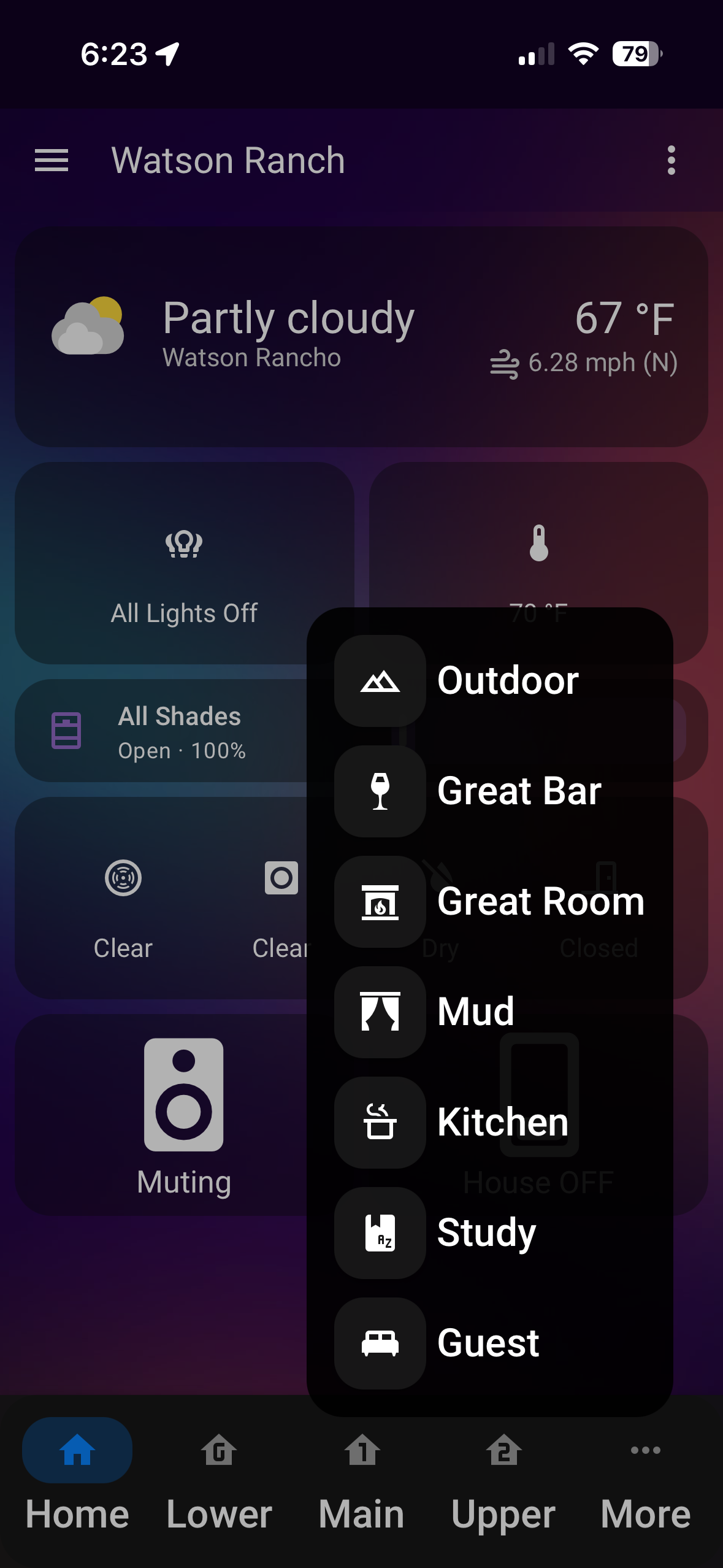
To access different areas of your home, tap either of the home shaped icons at the bottom of your screen. Lower, Main, or Upper. Home brings you back to the home page.
The three dots show a qr code to autoconnect guests to wifi, vsee cloning, or home assistant restart if devices arent behaving properly. (Restarts can take a few hours to propigate data across the network.)
Simply tap on any room name to switch to that area's controls and view its current status.
Enjoy Your Smart Home!

Now make like this horse, and chill. 🐴