📺 Television Controls
Control your TVs throughout the house with Home Assistant
Apple Native Controls
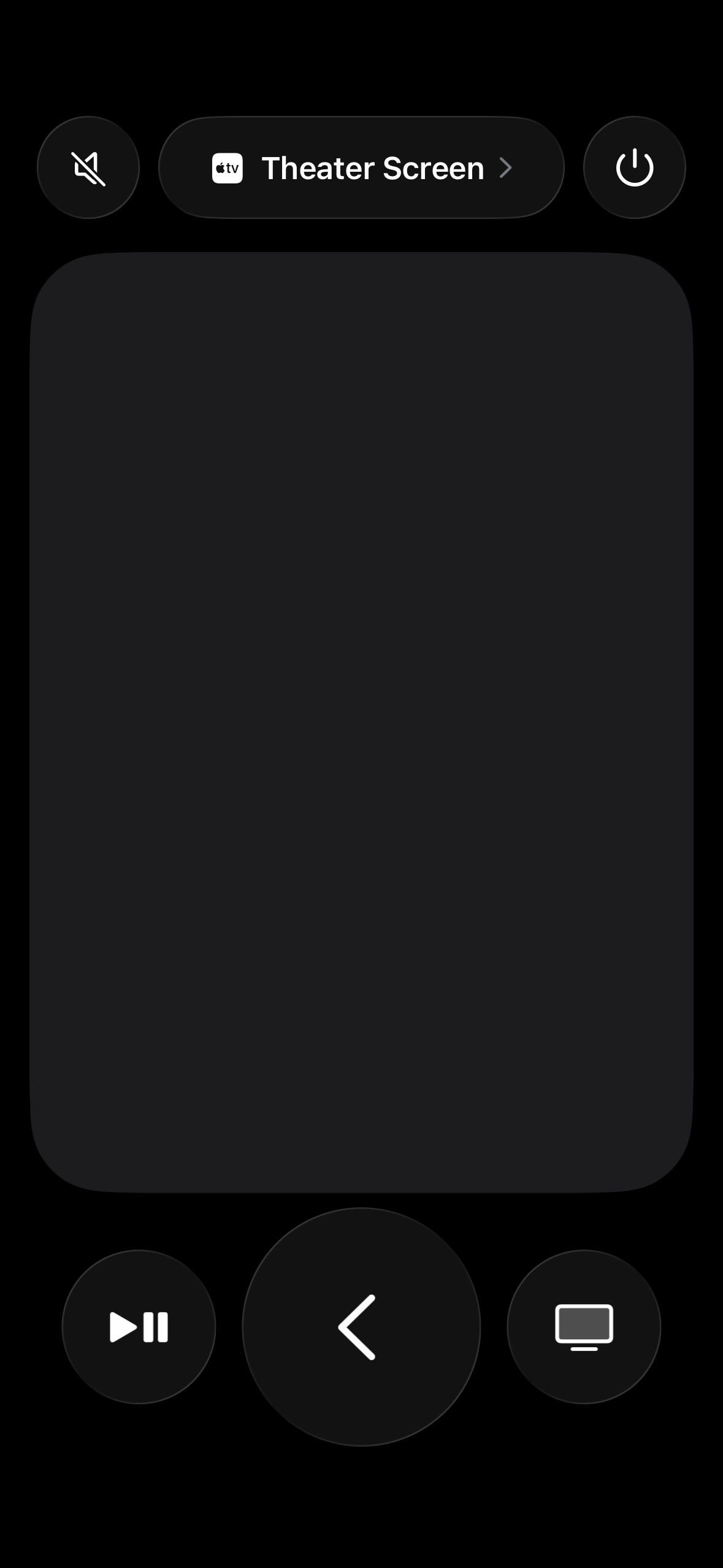
On your iPhone search for the app Remote. It Should be installed by default. If you're on Android, download a apple tv remote app.
Open that app and at the top where the image says theater screen you can click and select the various rooms.
Use the top power button or tap the tv shaped icon a few times to turn on the rooms tv.
Use your phones volume buttons to control the volume. Swipe around to navigate in the grey square.
Finding TV Controls Home Assistant
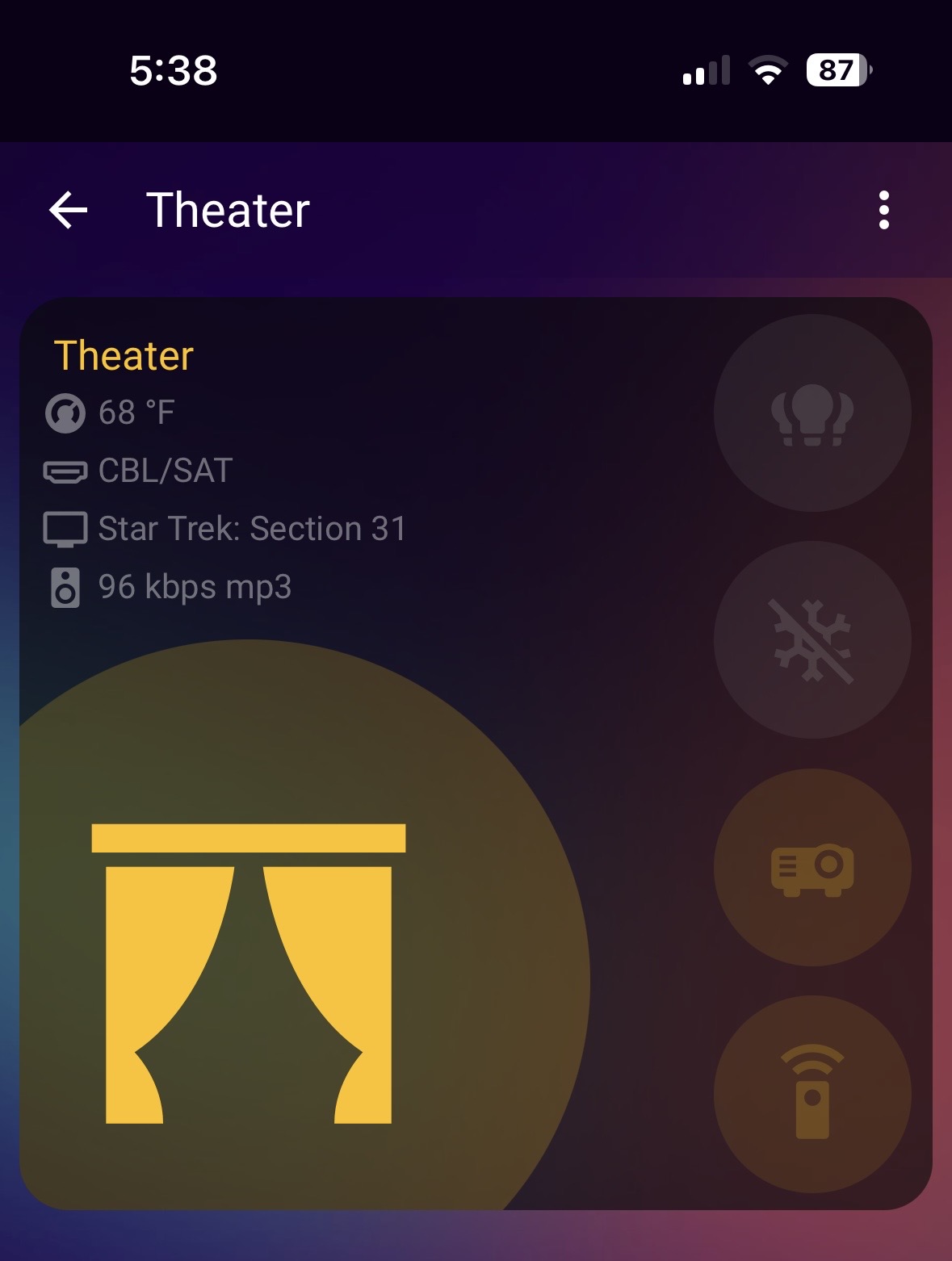
On the room cards you will see various icons.
Each card is your tech portal to the room.
Tap on the Remote Icon to expose the room's TV controls.
Long Tap on the Remote Icon to turn off or on the associated room.
Using Remote Controls
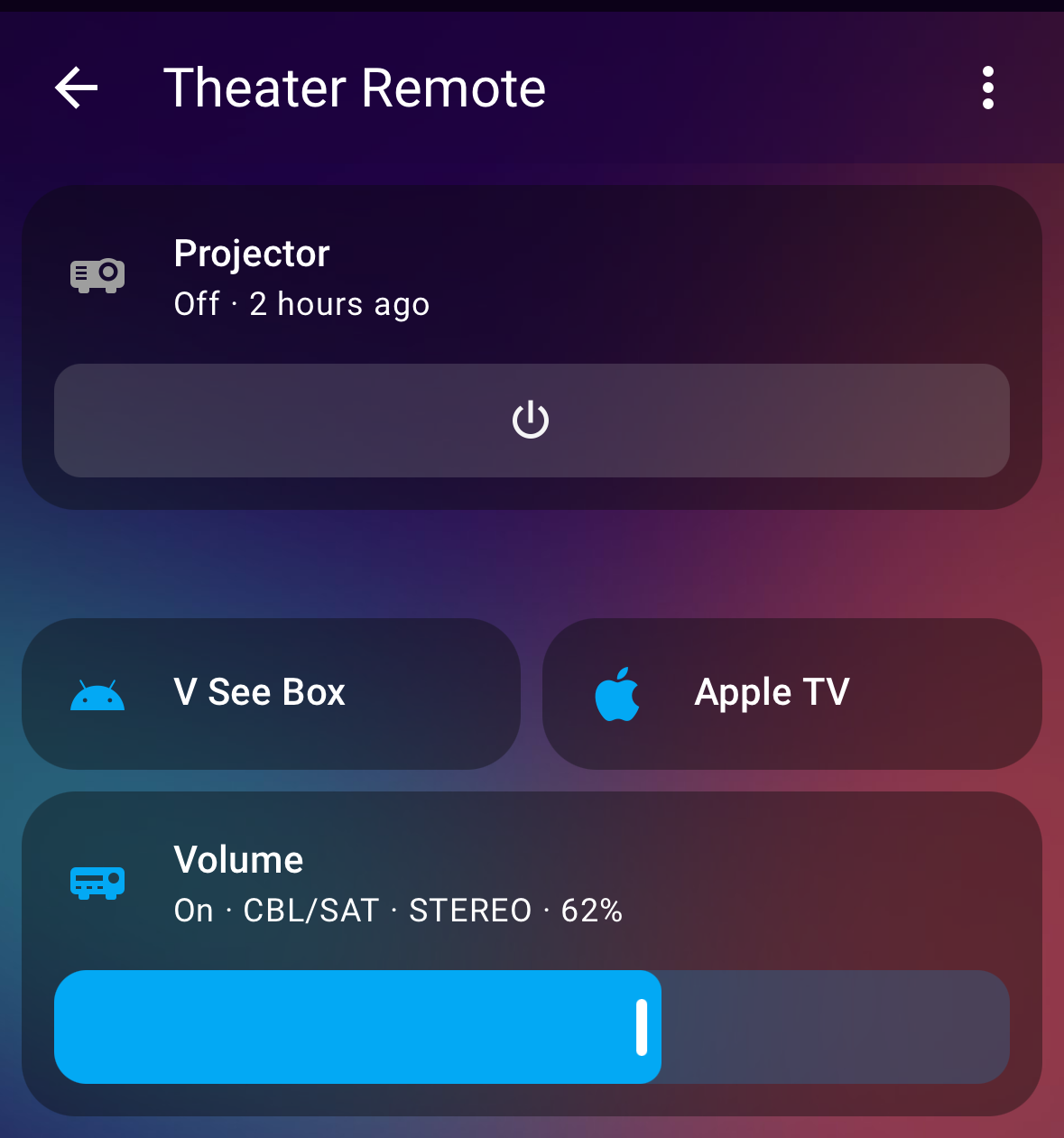
Tapping the Remote will show the theater remote with these controls:
📽️ Projector Button (Top): Turn the projector on or off (sometimes appears as a big TV icon)
🔄 Input Switching:
- VSee Button: Switch input to VSee source
- Apple TV Button: Switch input to Apple TV
🔊 Volume Controls: Adjust the audio volume up or down
⚠️ Note: If the projector doesn't respond immediately, tap the projector button a few times. Allow time for the projector to warm up.
Apple TV Controls
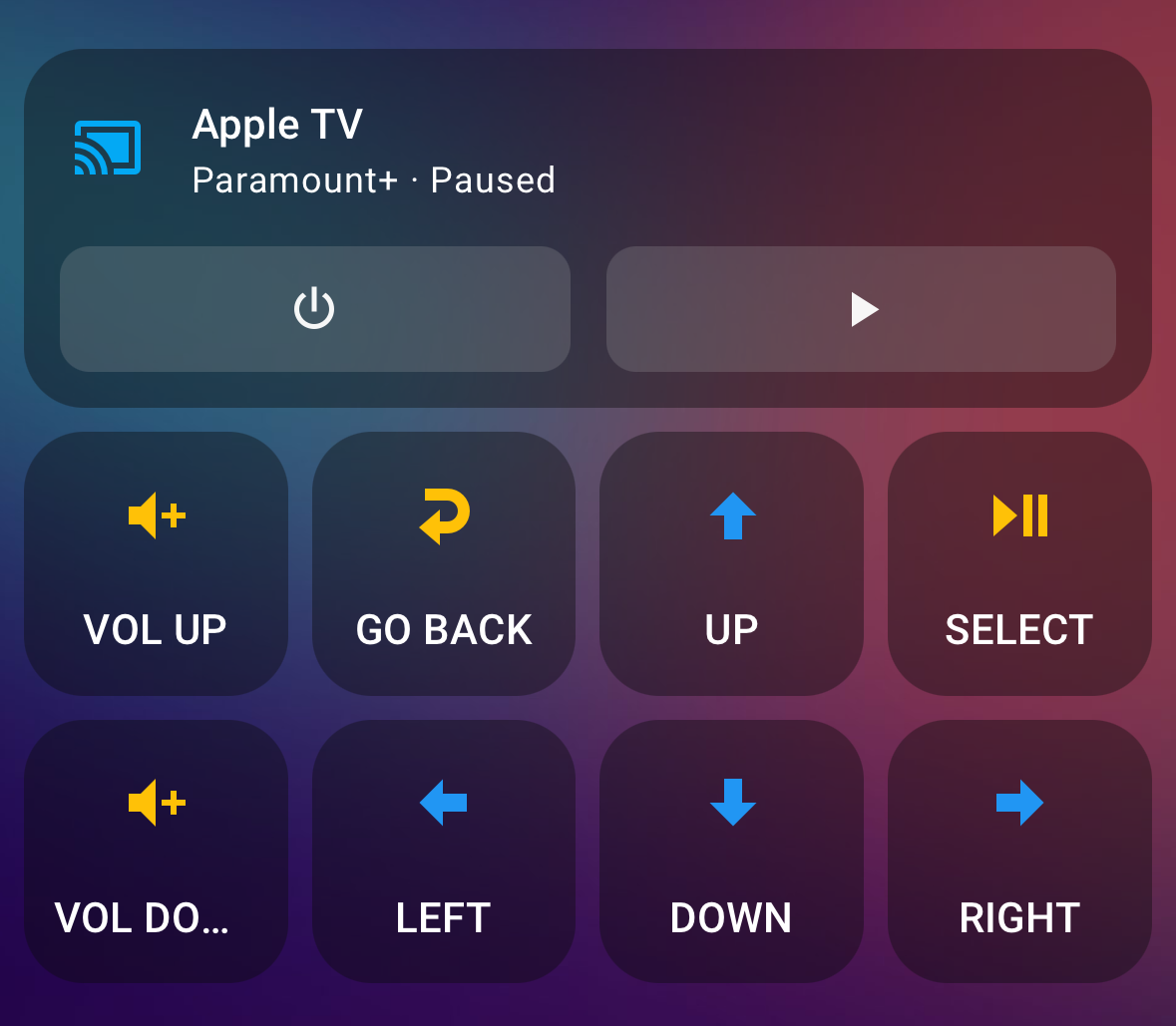
For more detailed control, you can access the full Apple TV remote interface.
This gives you access to all the standard remote functions including:
- Power and Play/Pause controls
- Volume controls (up and down)
- Navigation arrows (up, down, left, right)
- Go Back and Select buttons
Enjoy Your Entertainment

Now make like this horse, and chill. 🐴